
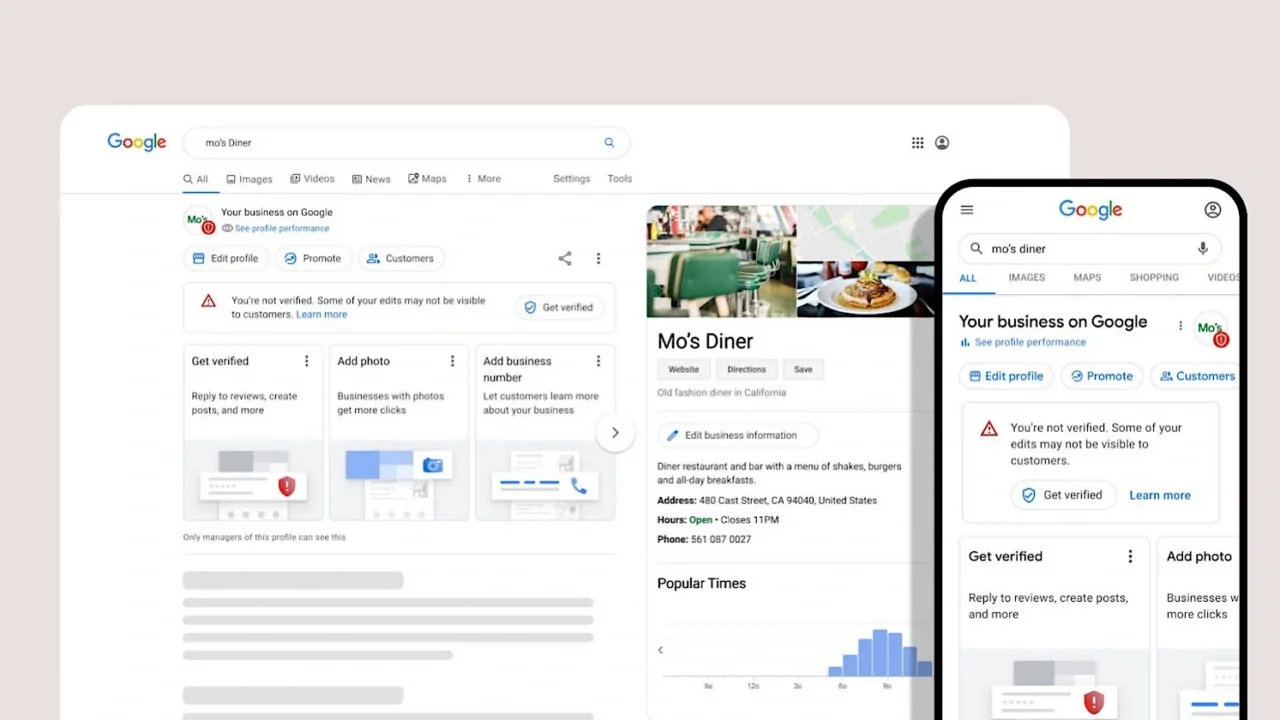
Your Google Business Profile probably already exists
A Google Business Profile is built automatically for most businesses — from mapping data, directory listings, and user submissions. There's a reasonable chance one already exists for yours right now, with hours nobody checked and a photo somebody else took. You just don't control it yet.
Claiming it, or creating one properly if it genuinely doesn't exist, is the single highest-return thirty minutes of local marketing available. It's free, it's the entry requirement for appearing in the map pack, and it feeds the business information that now shows up in AI-generated search answers.
This guide walks through every screen of the current setup flow, the six verification methods and which one you'll actually be offered, and the mistakes that get new profiles suspended before they ever go live.
Before you start: three things to have ready
Setup stalls when people hit a screen they're unprepared for. Have these open before you begin.
A Google account you'll keep. Use a business account you control long-term, not a personal Gmail you might abandon and not an employee's account. Transferring ownership later is possible but tedious, and losing access to a verified Google Business Profile is genuinely painful to recover from.
Your exact business name, as it appears in the real world. On your signage, your receipts, your registration documents. Not "Joe's Plumbing — 24/7 Emergency Plumber Chicago." That phrasing is the single most common cause of suspension, and section 7 covers why.
Proof you're at the address. If you have a storefront, that's your signage. If you're a service-area business working from home, you'll need something tying you to the location — branded vehicle, equipment, signed paperwork. Video verification is now the default method for most new profiles, and it is genuinely checked by a human.

The management panel on a live profile. Note the line at the bottom — "Only managers of this profile can see this." This view is what you're working toward, and it's only visible once you own and have verified the listing.
Step 1 — Check whether a Google Business Profile already exists
Search your business name plus your city in Google. If a panel appears on the right with your business in it, the Google Business Profile exists and you need to claim it, not create a new one.
Creating a duplicate is a real problem: duplicates don't show on Search or Maps, and sorting it out afterwards is slower than claiming correctly the first time.
If the panel shows "Own this business?" or "Claim this business," click it and skip to step 5.
If you already manage it, you'll see a blue badge reading "You manage this Business Profile" instead:

The badge confirming ownership. If you see this, the profile is already yours and you can go straight to step 6.
If it says the profile is already managed by someone else, you can request access. The current owner gets three days to respond. If they don't, you can proceed with a claim. This happens more than you'd expect — a former agency, a previous owner, an employee who left.
Step 2 — Start a new profile
Go to google.com/business. It
redirects to business.google.com/en-all/business-profile/.
There are two buttons that do the same thing: Start now in the top-right corner, and Create your profile in the middle of the page. Either works. Sign in with the account you chose above.

The landing page as of November 2026. Both buttons lead to the same place.
Step 3 — Business name and type
Enter your business name. A dropdown may suggest existing profiles as you type — check it carefully, because this is your second chance to catch a duplicate. Click Continue.
Next, select your business type. You can pick more than one:
- Online retail — you sell through a website
- Local store — customers come to a physical location
- Service business — you travel to customers
The choice matters, and not only cosmetically. Service businesses can hide their street address and display a service area instead, which is what you want if you run the business from home.
If you selected "Online retail," Google asks for your website URL. You can Skip this and add it later.
Step 4 — Category, address, and contact details
Primary category. This is the most consequential field in the entire setup. It determines which searches you're eligible to appear in. "Plumber" and "Emergency plumber service" surface in meaningfully different queries.
Pick the single category that most precisely describes your core business. You can add secondary categories afterwards, but resist loading up on them — too many categories relative to your actual business is a documented suspension trigger.
Address. Enter your real business address. Required for verification even if you intend to hide it. Service-area businesses can conceal the street address and show a service radius or list of cities instead.
Similar listings. If Google shows two or three listings that resemble yours, read them properly. If one is genuinely your business, claim it. If not, choose None of these and Continue.
Phone number. Use a number you can actually answer. If you end up with phone verification, an automated menu system won't receive the code. You can Skip to leave the phone off your listing.
Accept the terms and click Continue.

Typing four letters into the category field. Note that "Plumber" and "Plumbers' merchant" are separate categories serving genuinely different searches — and that the list also offers "Planetarium," which tells you the matching is literal rather than semantic. Type the words a customer would use, then read the options carefully.
Step 5 — Verification
Here's the part most guides get wrong: you don't choose your verification method. Google assigns it. The method depends on your business type, your region, what public information already exists about you, and your listed hours. You can't switch methods once assigned.
The six methods currently in use:
| Method | Who gets it | Timeline |
|---|---|---|
| Video | Most new profiles — storefront, service-area, and hybrid | Up to 5 business days after upload |
| Postcard | Some businesses with a physical address | Code arrives ~14 days, expires after 30 |
| Phone / text | Businesses with a verifiable listed number | Up to 5 business days |
| Limited eligibility | Up to 5 business days | |
| Live video call | Not offered to all; business hours only | No published timeline |
| Instant | Website already verified in Search Console | Immediate |
If you have Search Console access to your website, verify that first. Instant verification is the only method that skips the wait entirely, and it's the reason to connect Search Console before starting this process rather than after.
Video verification, which is what you'll probably get
Google now recommends video for any eligible business, so this is the common path. The requirements are specific and the review is manual:
- One continuous, unedited recording. No cuts, no stitching.
- At least 30 seconds. One to two minutes is a safer target.
- Recorded on a mobile device, live — not an upload of older footage.
- It must show three things: your location, evidence the business is real and operating, and evidence that you manage it.
What that looks like in practice: start outside with your signage and some of the surrounding street so the location is identifiable, walk inside, show branded equipment or stock or work in progress, then show something that proves authority — unlocking the till, accessing the back office, opening branded paperwork.
For a service-area business with no storefront, film your branded vehicle with the plate visible, your tools and equipment, and then your business paperwork or invoices.
The three most common rejection reasons, all avoidable:
- The business name isn't visible on the premises in the video
- No surrounding area shown, so the location can't be identified
- Nothing demonstrating you're authorised to manage the business
If it's rejected, you can re-record through Review issues. It isn't fatal.
Postcard verification, if you get it
A postcard with a five-digit code goes to your address. Typically around 14 days, and the code expires after 30.
While you wait, change nothing. Don't edit the business name, the address, or the category. Any of those invalidates the code in transit and you start again.
Don't request a second code early either — requesting a new one cancels the one already mailed. Wait the full period first.
[SCREENSHOT SLOT 4] — Your verification screen, or the postcard if you still have one. Even a photo of the physical postcard is a strong, genuinely unfakeable trust signal on this page.
Step 6 — Complete the Google Business Profile while verification is pending
Verification review takes up to five business days. Don't wait idle — a profile that goes live complete outperforms one that goes live empty and gets filled in over subsequent weeks.
Business hours. Including special hours for holidays. Incorrect hours are among the most common complaints in Google reviews, and they're entirely within your control.
Description, 750 characters. Write it for a person deciding whether to call you, not for a search engine. Keyword stuffing here does nothing for rankings and reads badly to the humans who actually make the decision.
Photos. This is where most profiles underperform. Minimum viable set:
- Logo and cover photo
- Exterior, from the direction customers approach
- Interior, at least three
- Team, at least one
- Work or products, as many as you have
Profiles with photos receive substantially more direction requests and website clicks than those without. Upload real ones, not stock.
Services or products. List them individually rather than as one block. Each becomes its own matchable entity.
Attributes. Wheelchair accessible, free parking, women-owned, LGBTQ+ friendly, and so on. These appear as filters in Maps searches, which means each applicable one is an additional way to be found.
Messaging and booking. Enable if you can respond quickly. A slow reply is worse than no messaging button.
Step 7 — Five mistakes that get a new Google Business Profile suspended
Suspension of a new Google Business Profile is common, and appeals can be submitted only once — so attach all your evidence the first time. All five of these are avoidable.
1. Keywords in the business name. "Smith Dental — Best Dentist in Denver" is a suspension waiting to happen. Your profile name must match your real-world name. This is the most frequent cause by a wide margin, and the most tempting, because it does briefly work before it doesn't.
2. A virtual office or mailbox as your address. Coworking addresses, registered-agent addresses and PO boxes aren't eligible. If you don't have premises customers visit, set up as a service-area business instead.
3. Too many categories. Adding every tangentially related category looks like gaming. Primary category plus two or three genuine secondaries.
4. A service area that doesn't match reality. Claiming you serve an entire state from one van is a flag. Google's guidance is a two-hour drive time as the outer bound.
5. Editing during verification. Covered above, worth repeating: changing name, address, or category while a code is in transit kills the code.
Step 8 — The first 30 days
Verification is the beginning, not the finish.
Week 1. Add every photo you have. Publish your first Update post. Fill in services with individual descriptions.
Week 2. Start requesting reviews from recent customers. Ask directly, in person or by message with the review link. Reviews are the strongest ranking factor you control, and a Google Business Profile with no reviews ranks poorly regardless of how complete it is.
Week 3. Publish an FAQ on your own website covering the ten questions customers actually ask, and answer them in the visible page copy.
This replaces advice you’ll still find in most guides, which tell you to seed the profile’s Q&A section. That feature no longer exists. Google deprecated the Q&A API in November 2025, began phasing out the public panel that December, and by early 2026 it had gone from profiles entirely. The replacement is Ask Maps — an AI feature in the Maps app that generates an answer on demand rather than showing a browsable list.
The practical consequence: you can’t pre-write the answers any more. Ask Maps assembles them from your profile fields, your reviews, your photos and your website. The way to influence what it tells people is to make sure those sources actually contain the answers — which is why the FAQ belongs on your own site now, where you control it.
Week 4. Check Performance in the dashboard. How many searches found you, how many were discovery versus direct, what people did next. That's your baseline for everything after.
Then maintain it: post weekly, respond to every review inside 48 hours, refresh photos monthly. Dormant profiles decline in the rankings against active competitors.

Six months of real data from our own agency profile — and a useful warning rather than a success story. Interactions fall from about 65 in June to 28 in November. Nothing broke; the profile simply wasn't maintained. No new photos, no Updates posted, no new reviews. This is what the decline in step 8 looks like on a real chart, and it's why the first-30-days routine below matters more than the setup itself.
How long does setup take?
Active work: 20 to 30 minutes, plus photo gathering.
Verification: instant if you qualify through Search Console, up to five business days for video, phone, or email, and two to four weeks if you get a postcard.
Visibility in the map pack: typically a few weeks to a few months after verification, depending on competition and review volume. It is not immediate, and anyone promising otherwise is selling something.
FAQ
Is a Google Business Profile free? Yes, entirely. Creating, verifying, and managing a Google Business Profile costs nothing. Anyone charging a fee to "register" your business with Google is reselling a free service.
Can I set one up without a physical address? Yes — as a service-area business. You provide an address for verification but hide it from the listing, and display the areas you serve instead.
What if someone else has claimed my business? Request access through the profile. The current owner has three days to respond; if they don't, you can proceed with your claim.
Why isn't my verified profile showing up in searches? Verification gets you eligibility, not ranking. Map pack position depends on relevance, distance, and prominence — reviews, citations, and website authority. A new verified profile with no reviews typically takes weeks to months to surface.
Do I need a website? No, and Google offers a free profile-based site. But a real website gives you Search Console access, which unlocks instant verification and supports ranking generally.
How many categories should I use? One precise primary, plus two or three genuine secondaries. More than that risks suspension.
Next steps
Setup done, verification pending. The next thing worth your time is optimisation — the difference between a Google Business Profile that merely exists and one that ranks.
More guides in Local SEO, including Google Business Profile optimization, ranking in the map pack, and the local SEO checklist for small businesses.